

Welcome to ExamFlip
This guide explains how to use the main areas of ExamFlip. It is organized by content, matching the screenshot of the actual applicaiton.
Use the contents menu to jump directly to the page you need. Each section explains what the page is for, what the visible controls do, and how a user should move through the workflow.
Create a new ExamFlip account
New users begin on the account creation screen. ExamFlip supports creating an account with an email address or continuing through Google authentication.
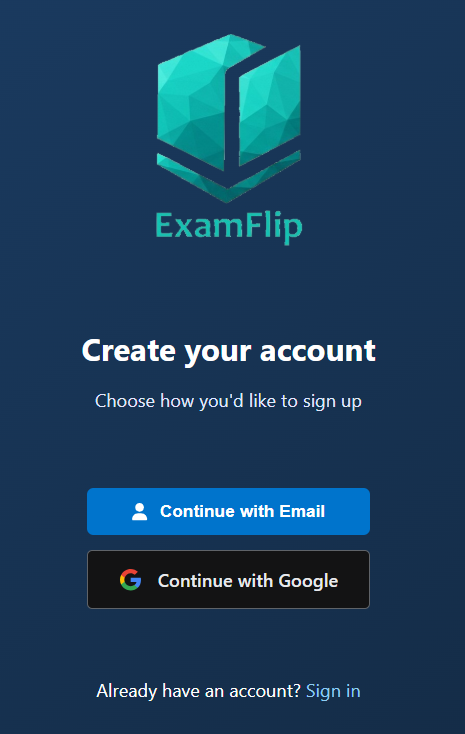
The first account screen lets the user choose email registration or Google sign-in.
Choose a sign-up method
- Select Continue with Email to create an account using a form.
- Select Continue with Google to authenticate with a Google account.
- Use Sign In if the user already has an ExamFlip account.
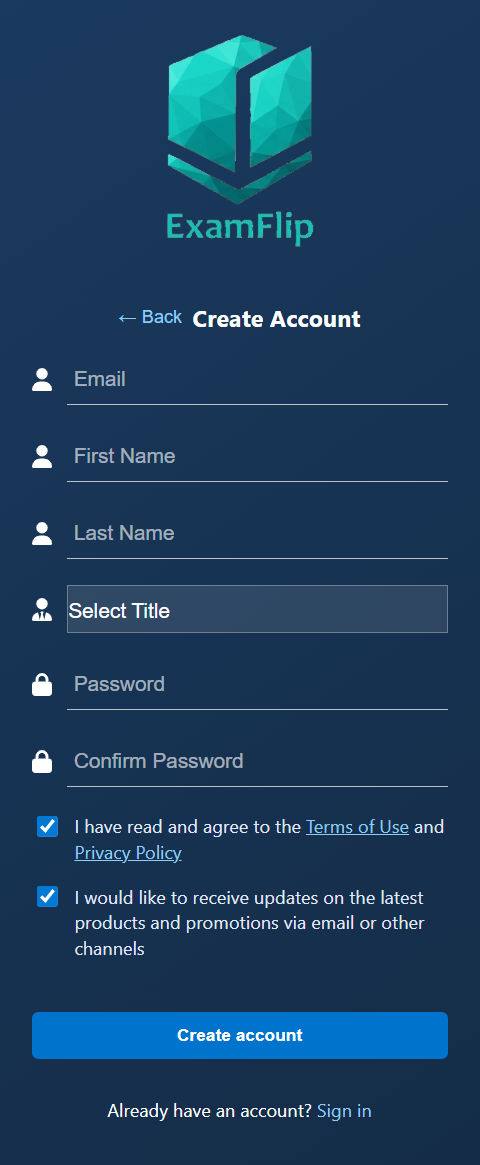
The email registration form collects profile details, password, and required policy agreement.
Complete the email form
- Enter the email address that should be used for login and verification.
- Add first name, last name, and professional title for the profile.
- Create a password and confirm it in the second password field.
- Review and accept the Terms of Use and Privacy Policy before submitting.
- Leave promotional updates enabled only if the user wants product and promotion emails.
Verify the email address
After email registration, ExamFlip sends a six-digit code to the address entered during sign up. The account is verified after the correct code is entered.
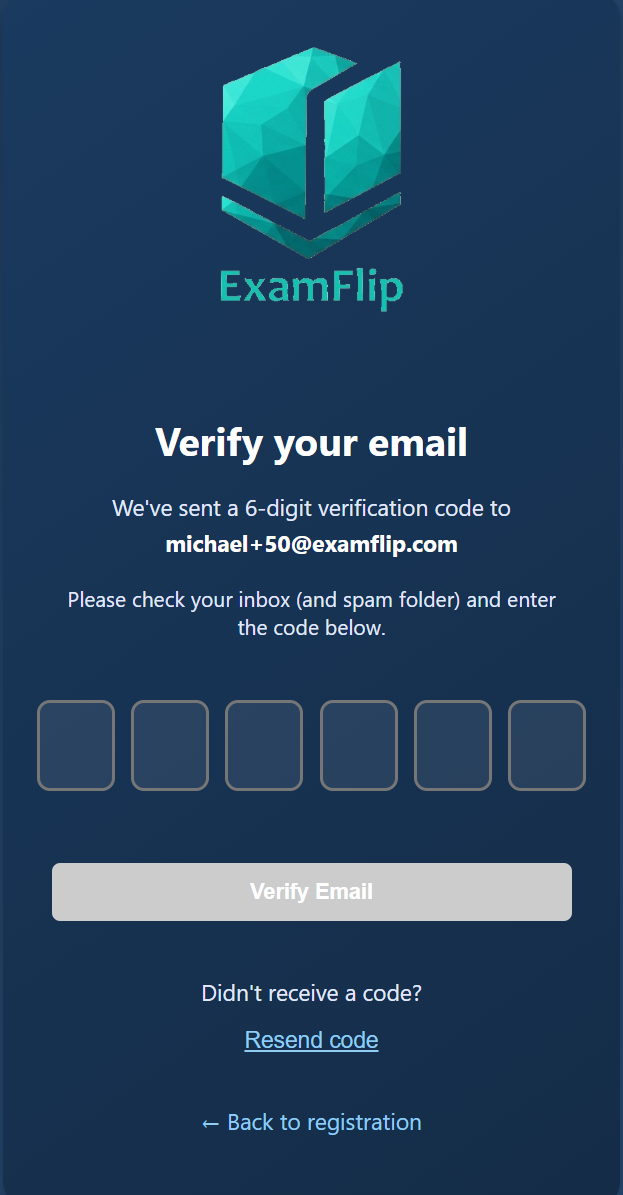
The verification screen asks for the six-digit email code.
Verification steps
- Open the inbox for the email address used during registration.
- Enter each digit of the code into the code boxes.
- Select Verify Email to finish account verification.
- Use Resend code if the message did not arrive or the code expired.
- Check spam or junk folders if the email is not visible after a short wait.
Sign in to ExamFlip
Returning users sign in with the same method used to create the account. Email accounts use email and password, while Google accounts use Google authentication. After successful sign-in, the user can access the study dashboard, practice sessions, simulated exams, analytics, billing, usage, and settings.
Common sign-in guidance
- Use the same email address that was verified during account creation.
- If the user created the account with Google, continue with Google instead of the email password form.
- If sign-in fails, confirm the email address, password, and verification status.
Move through the application
The side navigation gives access to account tools and study tools. The profile area at the top shows the current user and opens account-related actions.
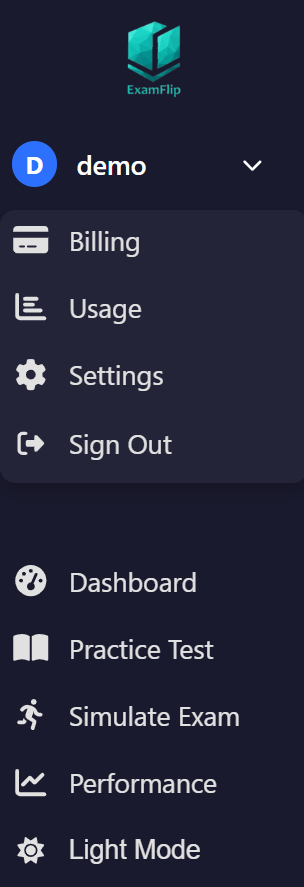
The side navigation includes account controls, study pages, performance analytics, and theme switching.
Navigation items
- Billing opens subscription plans and upgrade controls.
- Usage shows feature limits and plan consumption.
- Settings opens profile, password, preferences, plan, and data controls.
- Sign Out ends the current session.
- Dashboard returns to the main study overview.
- Practice Test starts focused question practice.
- Simulate Exam starts a timed exam-style session.
- Performance opens detailed performance history and category analysis.
- Flashcards opens the spaced-repetition flashcard decks.
- Light Mode switches the visual theme between light and dark modes.
Notifications
The bell icon in the header surfaces account and study notifications for the signed-in user.
Your study home base
The Dashboard is the screen a user lands on after signing in. It is the starting point for a study session and links out to Practice Test, Simulate Exam, Flashcards, AI Chat, and Performance Analysis.
Create and complete practice sessions
Practice Test is used for flexible study sessions. Users choose the exam type, filters, difficulty, and question count, then work through questions at their own pace.
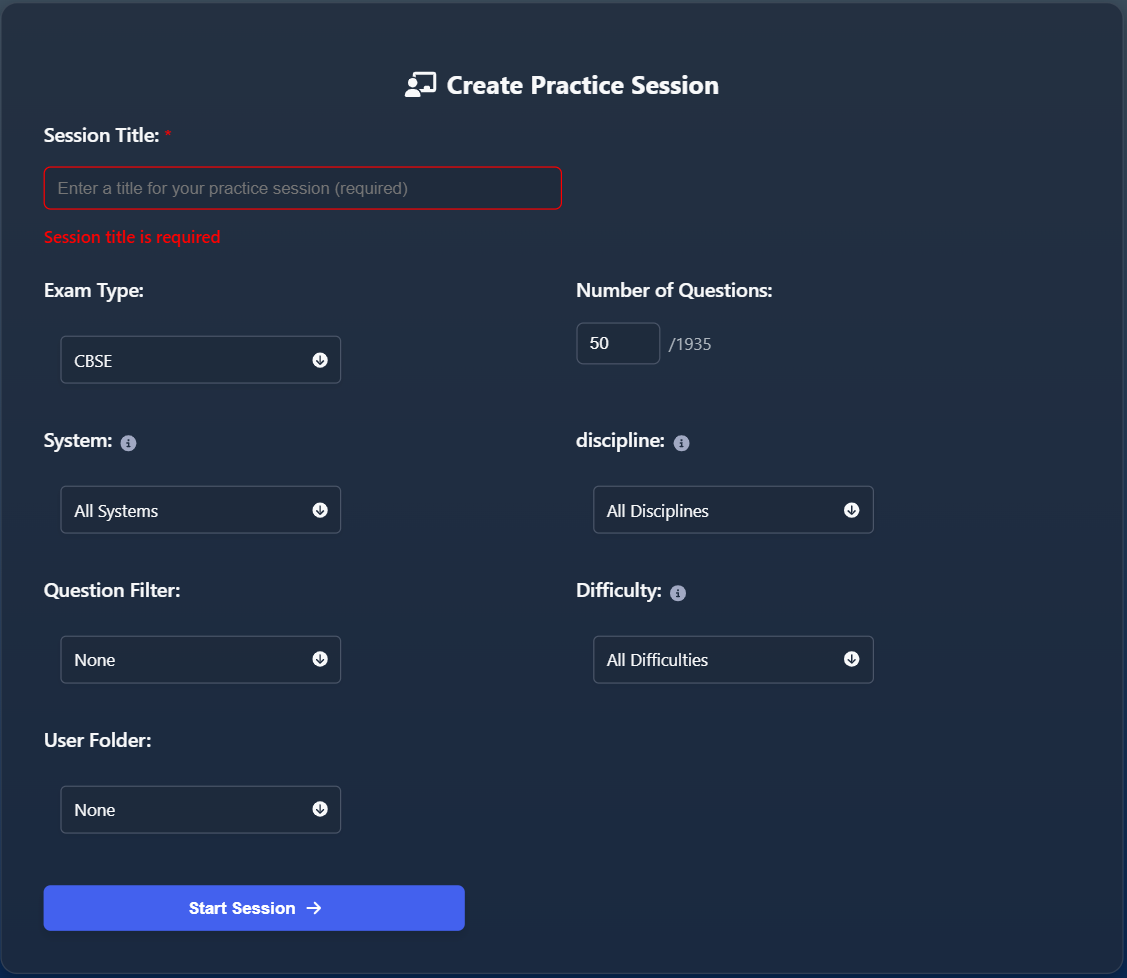
Create Practice Session includes title, exam type, question count, system, discipline, filter, difficulty, and folder.
Create a practice session
- Enter a Session Title. The screenshot shows validation when this required field is empty.
- Select the Exam Type, such as CBSE, STEP 1, or STEP 2.
- Choose the Number of Questions. The available total appears next to the input.
- Use System, Discipline, Question Filter, Difficulty, and User Folder to narrow the question set.
- Select Start Session to begin.
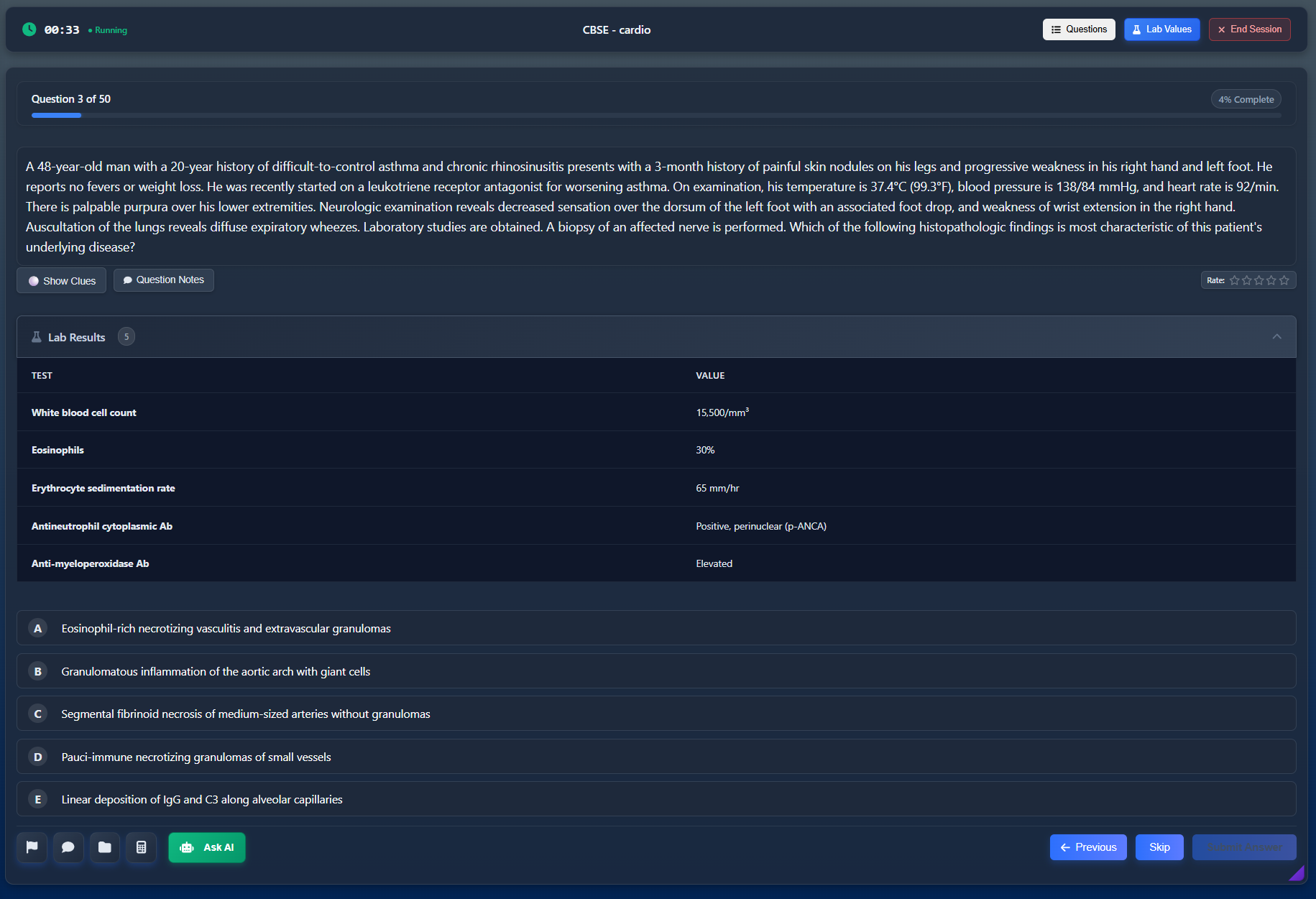
Practice mode includes timer status, progress, question text, lab values, answer choices, rating, notes, and AI assistance.
Use the question screen
- The top bar shows elapsed time and whether the session is running.
- The progress area shows the current question number and percent complete.
- Questions opens the session question list.
- Lab Values opens reference lab information when needed.
- Show Clues reveals supporting hints for the question.
- Question Notes lets the user add notes for later review.
- The star rating control can mark how the user felt about the question.
- Bottom controls include flagging, comments, folders, calculator, Ask AI, previous navigation, skip, and submit answer.
- End Session closes the practice session when the user is finished.
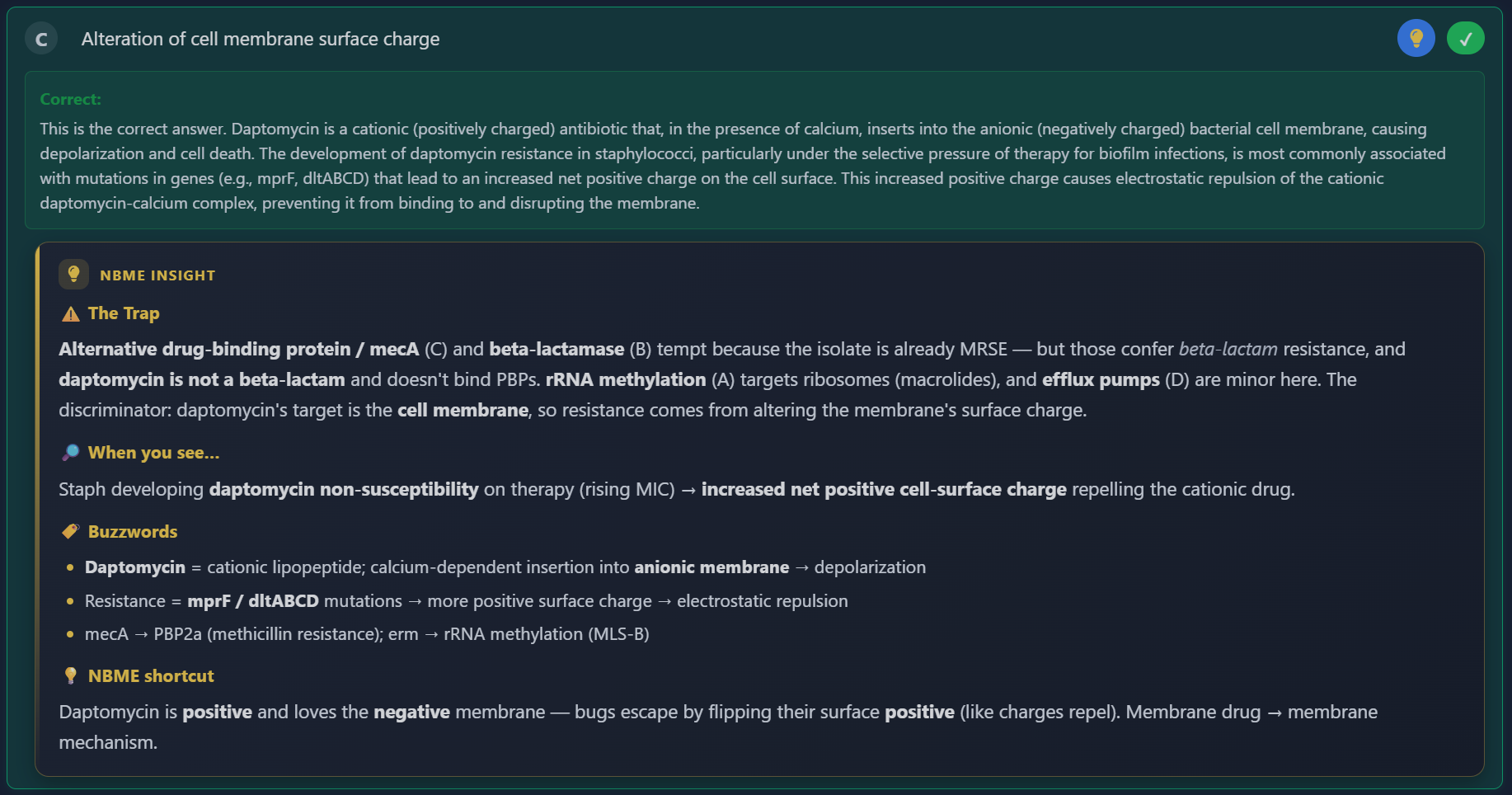
A reviewed answer choice with the green Correct block and the amber NBME Insight teaching panel.
Answer Insights
Every answer choice — not only the correct one — can carry an NBME Insight, a structured teaching note written by ExamFlip's content team. Select the lightbulb icon on a choice to open its panel, so the distractors teach too, not just the right answer.
- The Trap — explains why the tempting wrong choices are tempting and the discriminator that rules them out. Use it to see the reasoning error before repeating it.
- When you see… — gives the pattern-recognition trigger, written as a finding leading to a mechanism. Use it to build quick recognition for the next similar case.
- Buzzwords — lists high-yield term associations for the concept. Use it to reinforce recall cues.
- NBME shortcut — a one-line mnemonic for exam day. Use it as the fast recall line during a timed block.
- Insights appear after submitting an answer in practice mode, and throughout review, including review of a finished simulated exam.
- Because insights are pre-written rather than generated on the fly, format and quality stay consistent from question to question.
- Available on both web and mobile, with coverage across CBSE, USMLE Step 1, and USMLE Step 2.
Saved questions, folders, and notes
- A question can be saved for later review.
- Saved questions can be organized into folders.
- A personal note can be attached to a question.
Take a timed simulated exam
Simulate Exam creates a structured, timed exam experience. It is designed for users who want pacing, blocks, navigation, and exam-style controls.
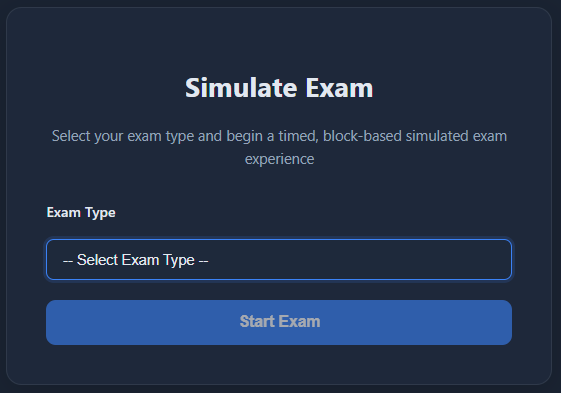
The simulated exam setup asks the user to select an exam type before starting.
Start a simulated exam
- Open Simulate Exam from the navigation bar.
- Select the exam type from the dropdown.
- Select Start Exam. The button becomes available after a valid exam type is selected.
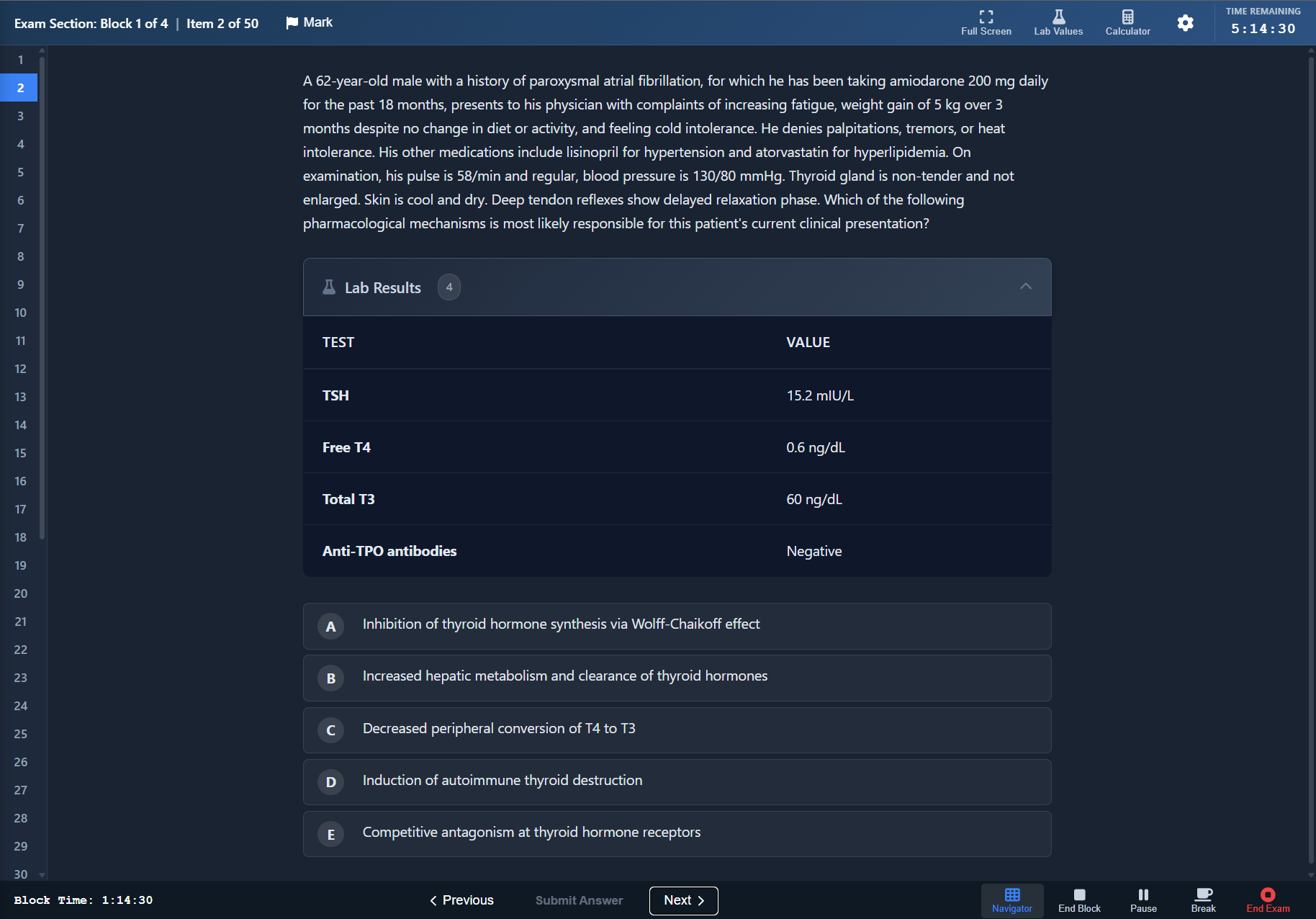
Dark simulated exam view with block number, item number, marking, lab values, calculator, timer, and exam controls.
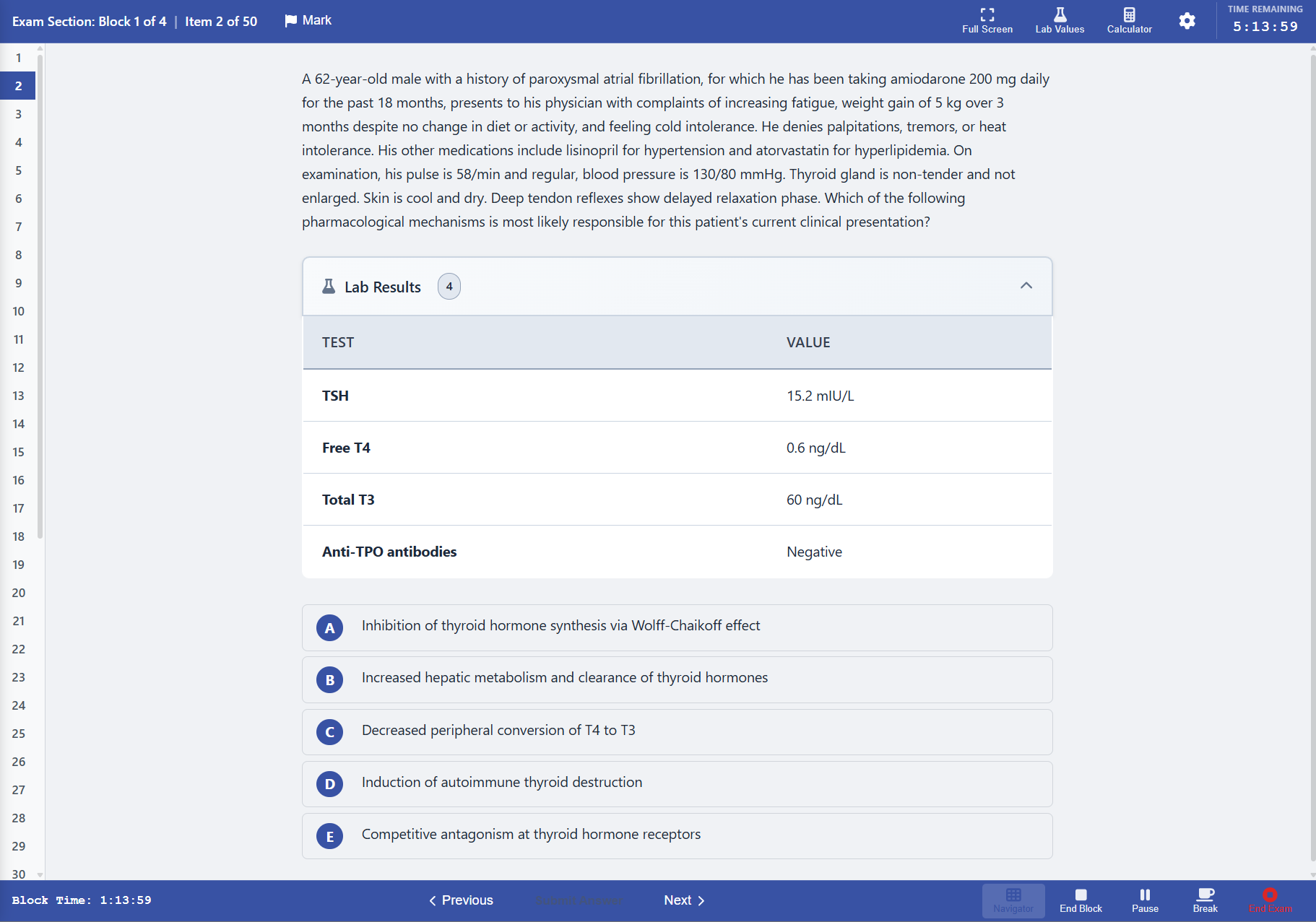
Light NBME-style simulated exam view with the same block, navigation, and timer workflow.
Exam controls
- The left navigator lists question numbers and highlights the active item.
- Mark flags an item for later review.
- Full Screen expands the testing interface.
- Lab Values and Calculator open tools commonly needed during exam questions.
- The timer in the top-right shows remaining exam time, while the bottom-left shows remaining block time.
- Previous and Next move between items.
- Submit Answer becomes active after selecting an answer choice.
- End Block, Pause, Break, and End Exam control the exam flow.
Note: Answer Insights are intentionally hidden while a simulated exam is live, so the experience stays faithful to real exam conditions. They become available afterward, in post-exam review. See Answer Insights in the Practice Test section for what they contain.
Study with spaced repetition
Flashcards, reached from the Flashcards item in the app sidebar, is an Anki-style study tool built on genuine SM-2 spaced repetition. ExamFlip tracks per-user scheduling state and a real due date for every card, so each person's review queue is personalized.
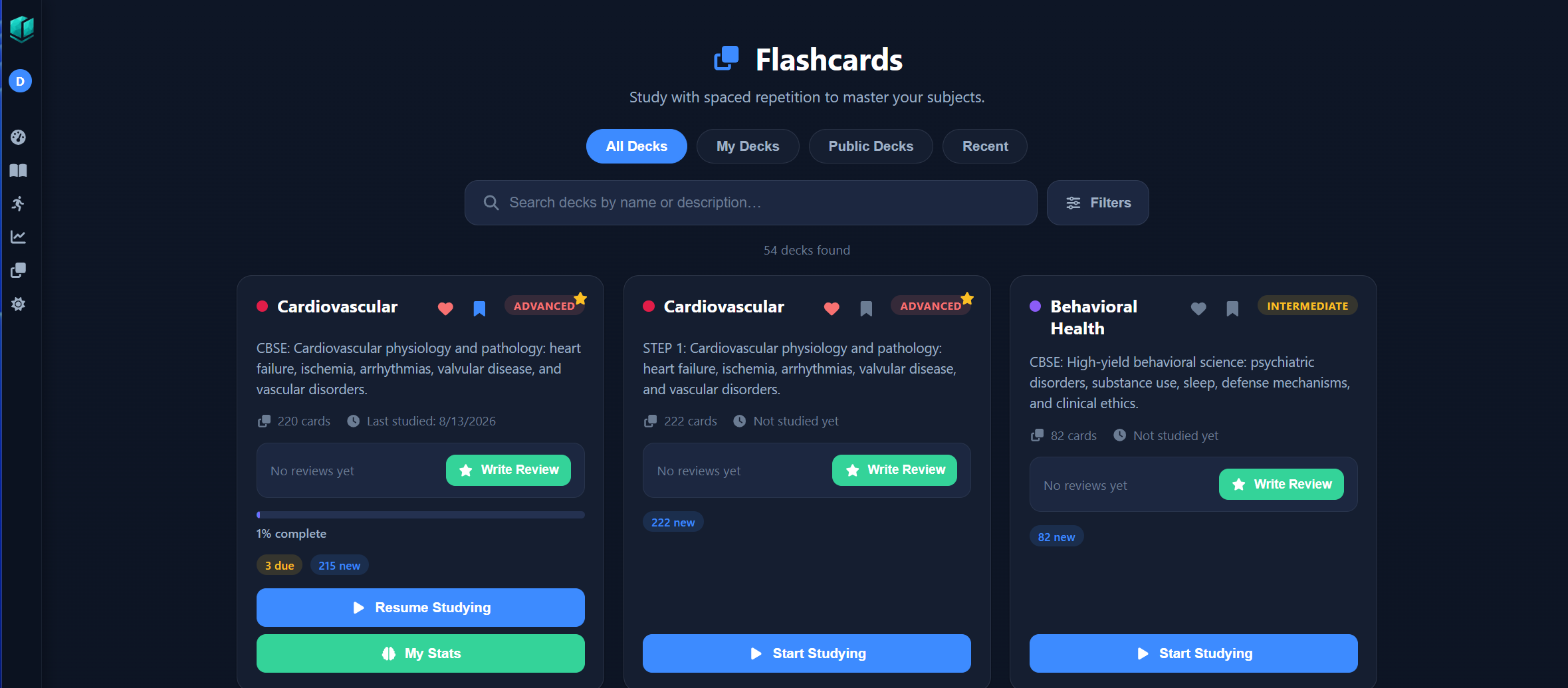
The deck browser lists decks with subject, difficulty, card counts, and study controls.
Find a deck
- Four tabs organize the library: All Decks, My Decks, Public Decks, and Recent.
- Use the live search box to search decks by name or description.
- Filters narrows the list further.
- A count line (for example, "54 decks found") shows how many decks match the current tab, search, and filters.
Read a deck card
- A colored dot marks the subject, followed by the deck name, a difficulty badge (Beginner, Intermediate, or Advanced), and a description.
- The heart icon favorites a deck; the bookmark icon adds it to the study list. These are two independent toggles — favorite marks a deck the user likes, and study list marks a deck the user intends to work through.
- The card count (for example, "220 cards") and last-studied date, or "Not studied yet", show at a glance how far along the deck is.
- Ratings show "No reviews yet" with a Write Review button until reviews exist.
- Once a deck has been studied, its card also shows a percent-complete progress bar, a due count chip, and a My Stats button. An unstudied deck shows only a new count chip.
- Select Start Studying to begin a deck for the first time. The same button reads Resume Studying once the deck is already in progress.
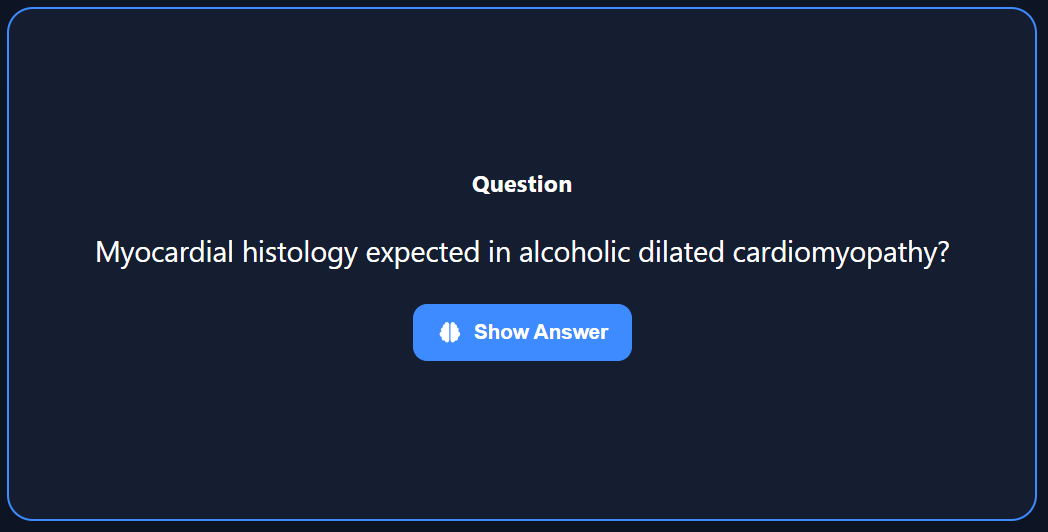
The front of a study card shows the Question label, the question text, and the Show Answer button.
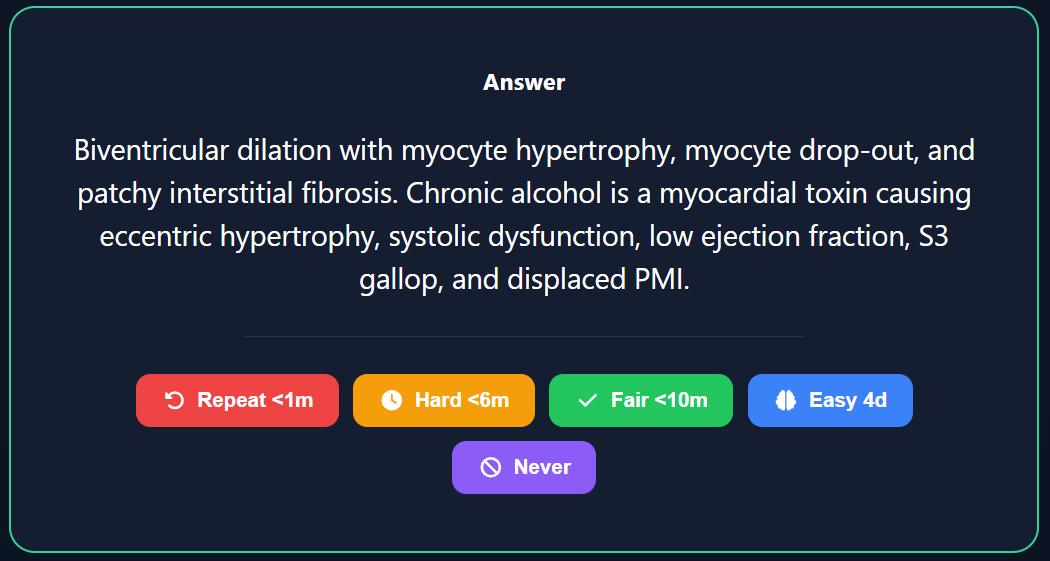
The back of a study card shows the Answer label, the answer text, and the response buttons.
Study a card
- Read the question on the front of the card, then select Show Answer to flip it.
- Rate the card using one of the response buttons. Each label is when the card comes back, not a grade of how well the user did:
- Repeat <1m — the card returns in under a minute.
- Hard <6m — the card returns in under six minutes.
- Fair <10m — the card returns in about ten minutes.
- Easy 4d — the card returns in about four days.
- Never — suspends the card so it stops appearing in study sessions.
My Stats
Each deck's My Stats panel reports cards studied and time spent today, this week, and this month, along with session count, average score, and study streak.
Create a card from a question
An icon on any practice question opens a modal for turning that question into a flashcard. Choose Generate with AI to create a draft with preview and regenerate options, or type the card manually, then save it into one of the user's decks.
Public deck library and plan limits
- The public library contains professionally written decks organized by body system, covering USMLE Step 1, USMLE Step 2, and CBSE — 54 public decks and 7,522 cards in total.
- Every plan, including Free, can browse public decks, read ratings and reviews, and study.
- Free is capped at 10 cards per day. Basic and above study with no daily cap.
- Creating decks or cards, whether manual or AI-generated, and writing reviews require an AI-inclusive plan (Standard or Premium).
Ask the AI tutor
ExamFlip offers AI help in two places: a dedicated AI Chat page, and an in-question Ask AI tutor available while working a practice question. Both consume AI quota — see Usage & Metrics to track how much is left. AI Chat requires an AI-inclusive plan.
Review performance history and recommendations
Performance Analysis helps users understand how they are improving over time. It combines summary cards, charts, score distribution, study volume, category performance, and detailed category-level actions.
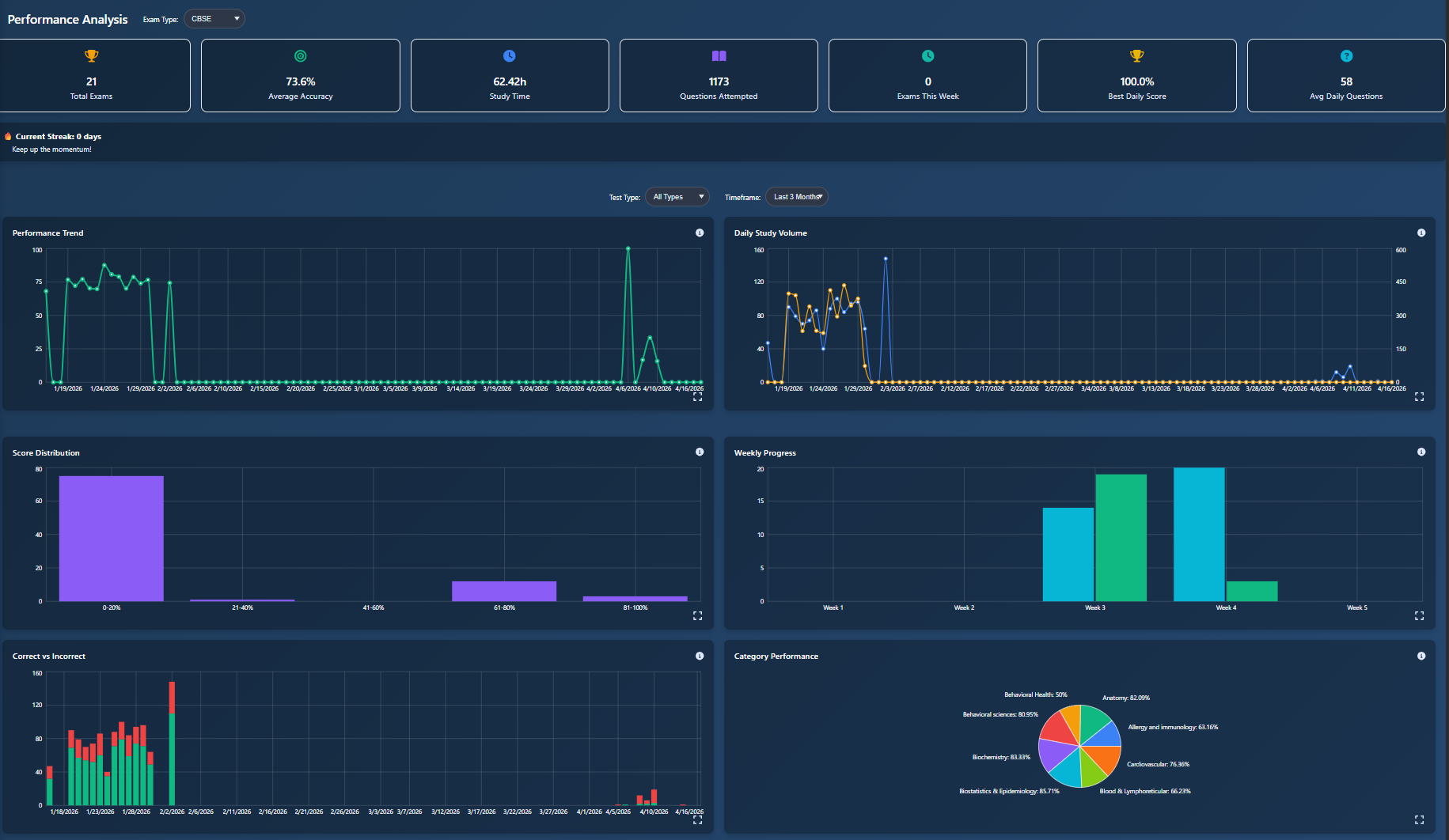
Performance history includes totals, average accuracy, study time, attempts, streak, charts, and category performance.
Read the dashboard
- Use the Exam Type dropdown to switch the data set.
- Top cards summarize total exams, average accuracy, study time, questions attempted, exams this week, best daily score, and average daily questions.
- Performance Trend shows accuracy changes over time.
- Daily Study Volume shows how many questions were completed each day.
- Score Distribution groups scores into performance ranges.
- Weekly Progress compares week-by-week activity.
- Correct vs Incorrect compares answer outcomes over time.
- Category Performance shows category accuracy as a chart.
Use filters and chart tools
- Test Type filters performance by exam or session type.
- Timeframe controls the date range displayed in the charts.
- Info icons explain what each chart measures.
- Expand icons open a larger chart view when more detail is needed.
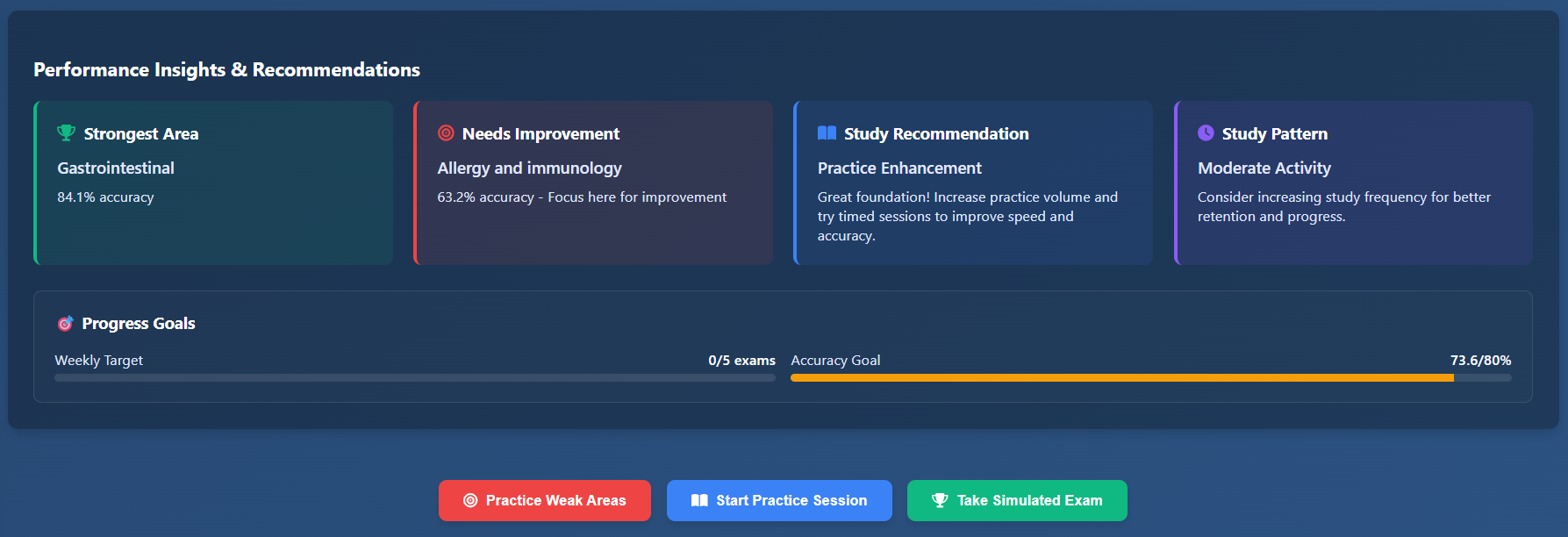
Insights summarize strongest area, improvement area, study recommendation, study pattern, and progress goals.
Turn insights into action
- Strongest Area highlights the category with the best accuracy.
- Needs Improvement identifies a category to prioritize.
- Study Recommendation gives a suggested next study action.
- Study Pattern summarizes activity level and consistency.
- Progress Goals show weekly target progress and accuracy goal progress.
- Use the action buttons to practice weak areas, start a practice session, or take a simulated exam.
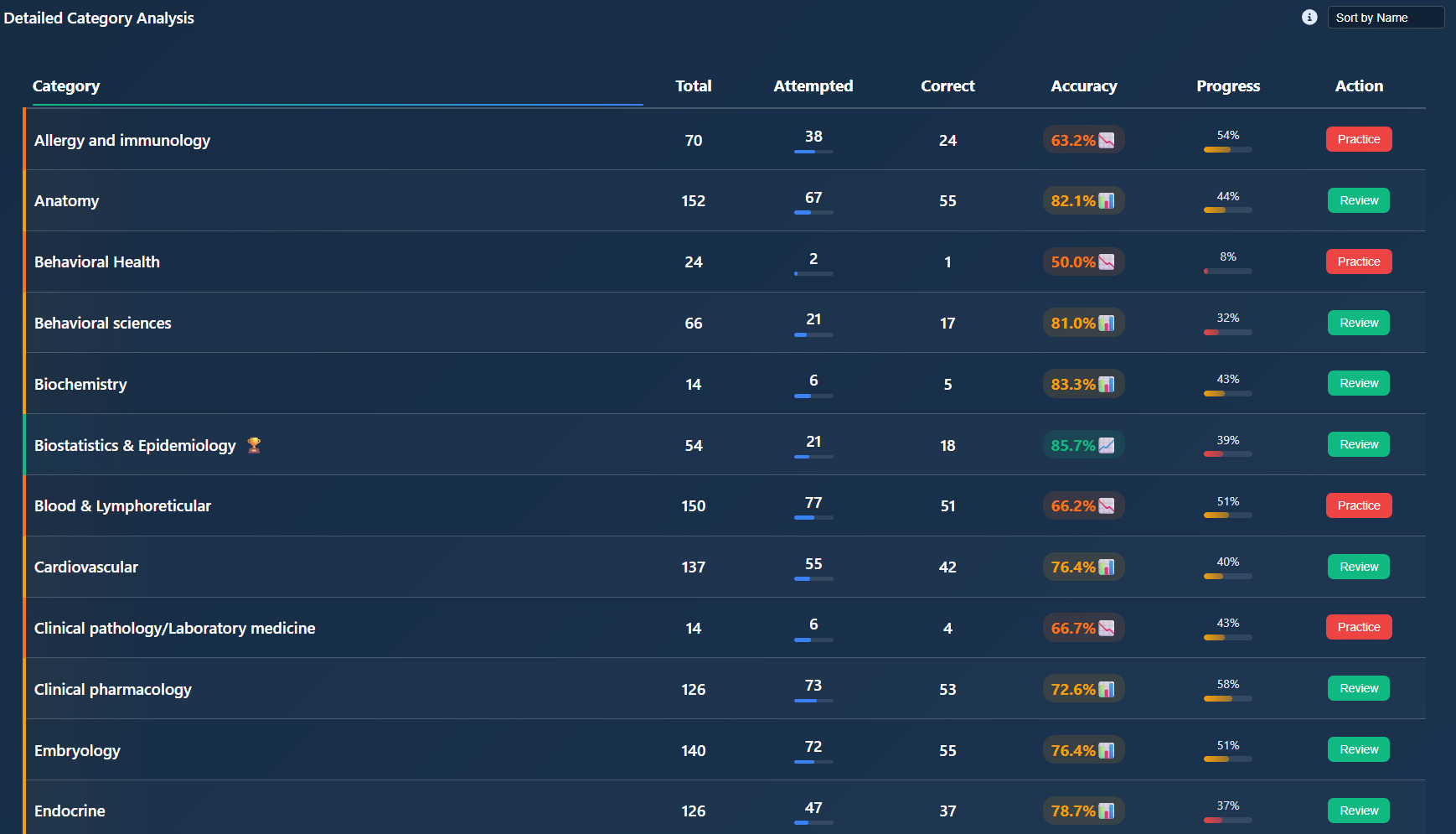
Detailed category analysis lists total questions, attempted, correct, accuracy, progress, and recommended action.
Review category details
- Total shows available questions in the category.
- Attempted and Correct show current question history.
- Accuracy shows the user's correctness rate for that category.
- Progress shows how much of the category has been covered.
- Practice appears when the category needs more work.
- Review appears when the user should revisit completed work or maintain strength.
- Use Sort by Name to change category order.
Manage subscription plans
Billing lets users compare plans, select exam coverage, switch between monthly and annual billing, and upgrade when more access is needed.
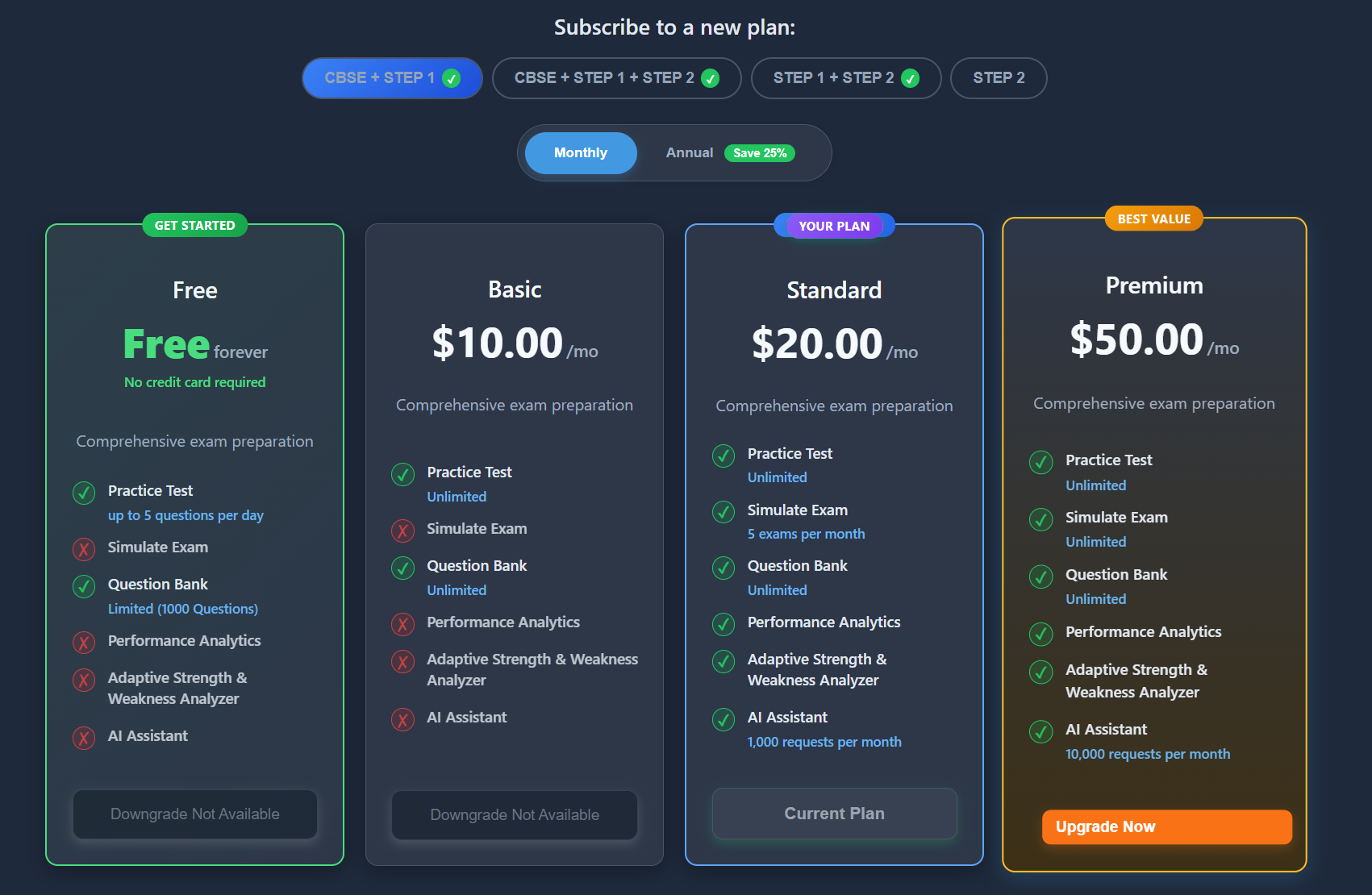
Billing shows plan groups, monthly and annual billing options, Free, Basic, Standard, and Premium plans.
Billing guide
- Use the plan group buttons to choose exam coverage, such as CBSE + STEP 1 or CBSE + STEP 1 + STEP 2.
- Switch between Monthly and Annual. Annual billing may show a savings label.
- Compare each plan by price, practice access, simulated exam access, question bank access, analytics, adaptive analyzer, and AI assistant limits.
- Your Plan identifies the current subscription.
- Upgrade Now starts an upgrade flow for a higher plan.
- Downgrade Not Available indicates that the displayed plan cannot be selected as a downgrade from the current state.
Referrals
- A referral code can be entered during sign-up.
- A user's own referral code can be found on the Billing page.
Track plan usage and feature limits
Usage & Metrics shows how much of each plan feature has been used during the current billing cycle. It helps users understand whether they are near a limit.
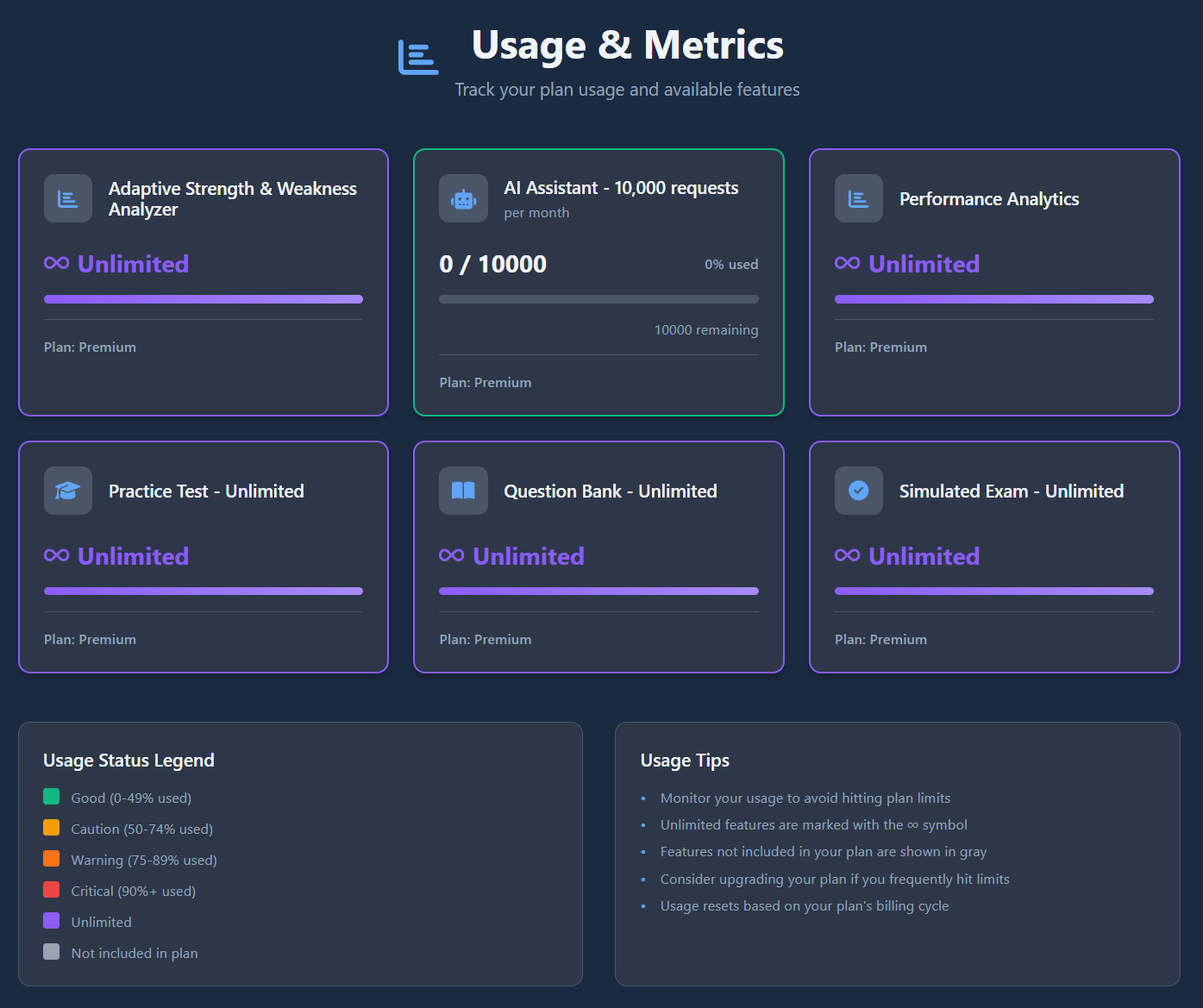
Usage cards show plan features, unlimited access, AI request counts, progress bars, status legend, and usage tips.
Usage cards
- Unlimited features are marked with the infinity symbol.
- Metered features show used amount, total allowance, percentage used, and remaining amount.
- Each card shows which plan provides the feature.
- Features not included in the plan may appear disabled or gray.
Status legend
- Good means usage is below 50%.
- Caution means usage is between 50% and 74%.
- Warning means usage is between 75% and 89%.
- Critical means usage is 90% or higher.
- Unlimited means the feature has no plan limit.
- Usage resets based on the plan billing cycle.
Manage account settings
Settings groups account management into profile, security, display preferences, email preferences, active plan, data management, and account deletion. Screenshots that begin with setting- belong to this section.
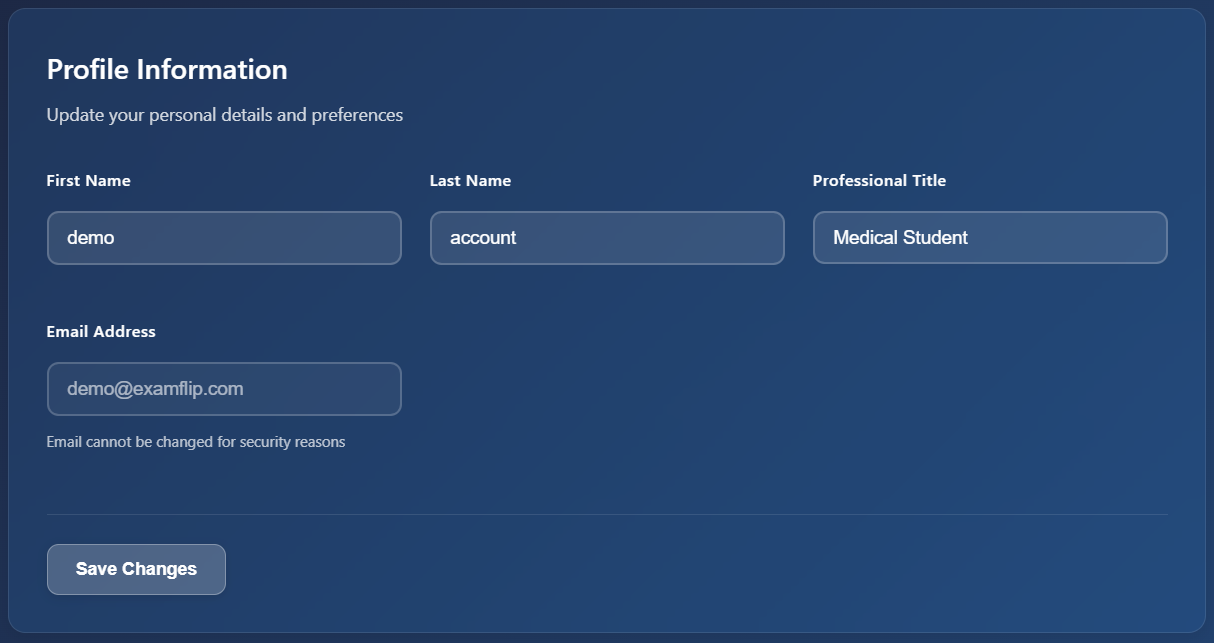
Profile Information lets the user update first name, last name, and professional title.
Profile Information
- Edit first name, last name, and professional title.
- The email address is shown for reference and cannot be changed for security reasons.
- Select Save Changes to apply profile updates.
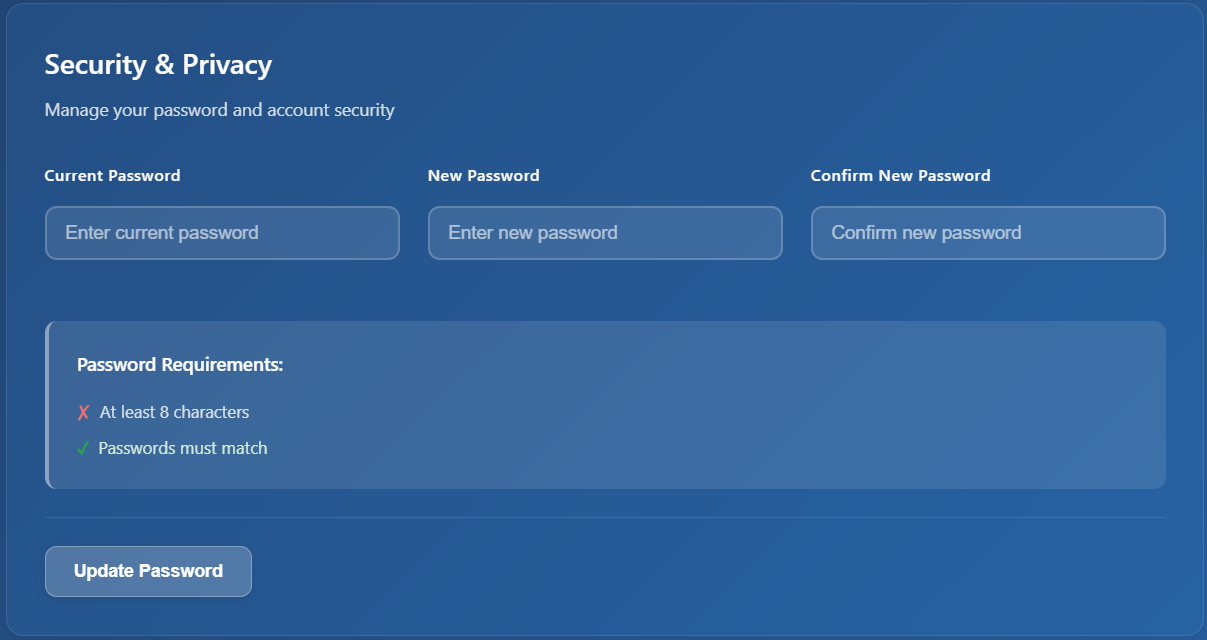
Security & Privacy is used to update the account password.
Security & Privacy
- Enter the current password.
- Enter a new password with at least eight characters.
- Confirm the new password. The confirmation must match.
- Select Update Password to save the new password.
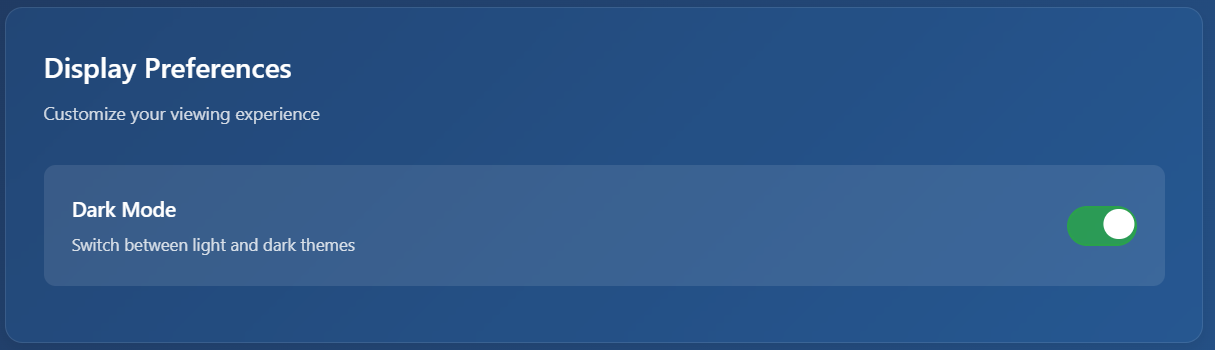
Display Preferences includes a Dark Mode toggle.
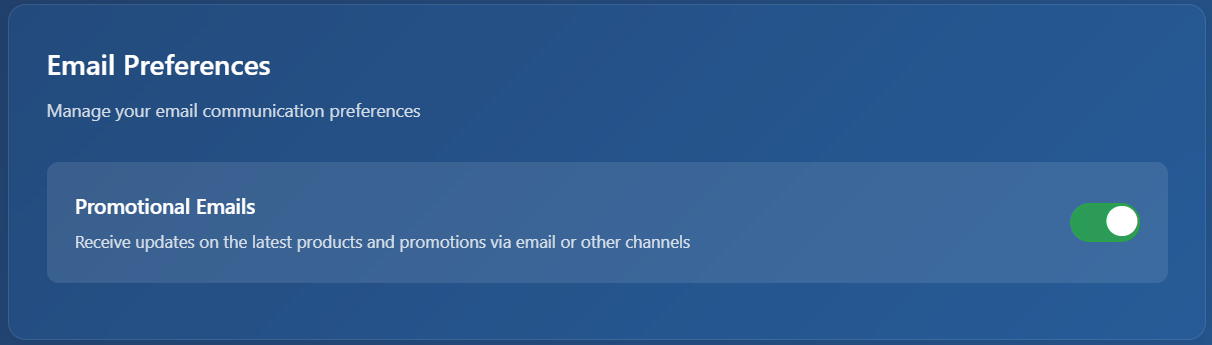
Email Preferences includes a Promotional Emails toggle.
Preferences
- Use Dark Mode to switch between dark and light themes.
- Use Promotional Emails to opt in or out of product and promotion updates.
- Preference toggles take effect according to the application settings behavior.
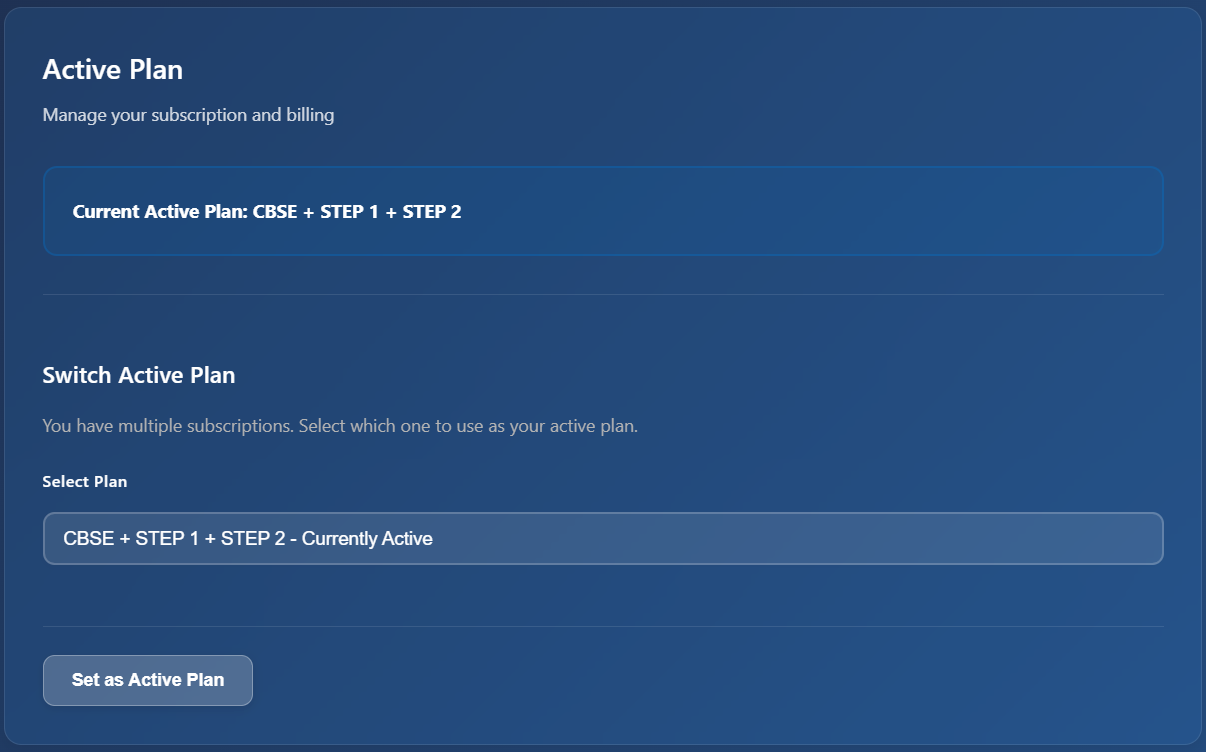
Active Plan shows the current subscription and allows switching when multiple subscriptions exist.
Active Plan
- Review the current active plan at the top of the panel.
- If the account has multiple subscriptions, choose the plan to use as active.
- Select Set as Active Plan to apply the selected plan.
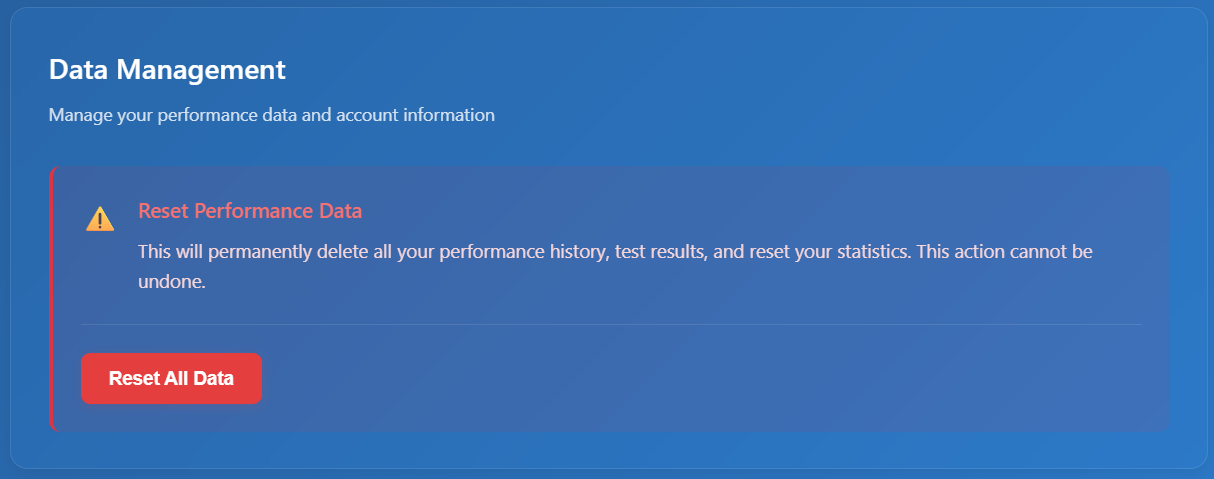
Data Management can reset performance history, test results, and statistics.
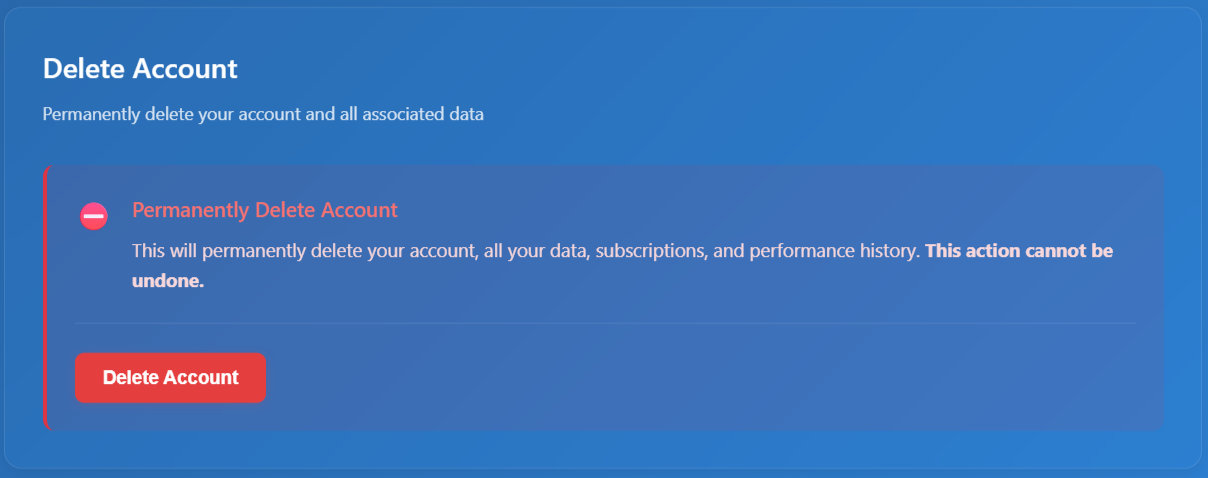
Delete Account permanently removes the account and associated data.
Danger zone actions
- Reset All Data permanently deletes performance history, test results, and statistics. This action cannot be undone.
- Delete Account permanently deletes the account, subscriptions, performance history, and associated data. This action cannot be undone.
- Users should confirm they no longer need the data before using either action.
- Request account deleteion support from the support team if needed. Send email to support@examflip.com
Study on iOS and Android
ExamFlip is available as a native app on both iOS and Android. Progress syncs with the web app, so a user can move between devices without losing history.
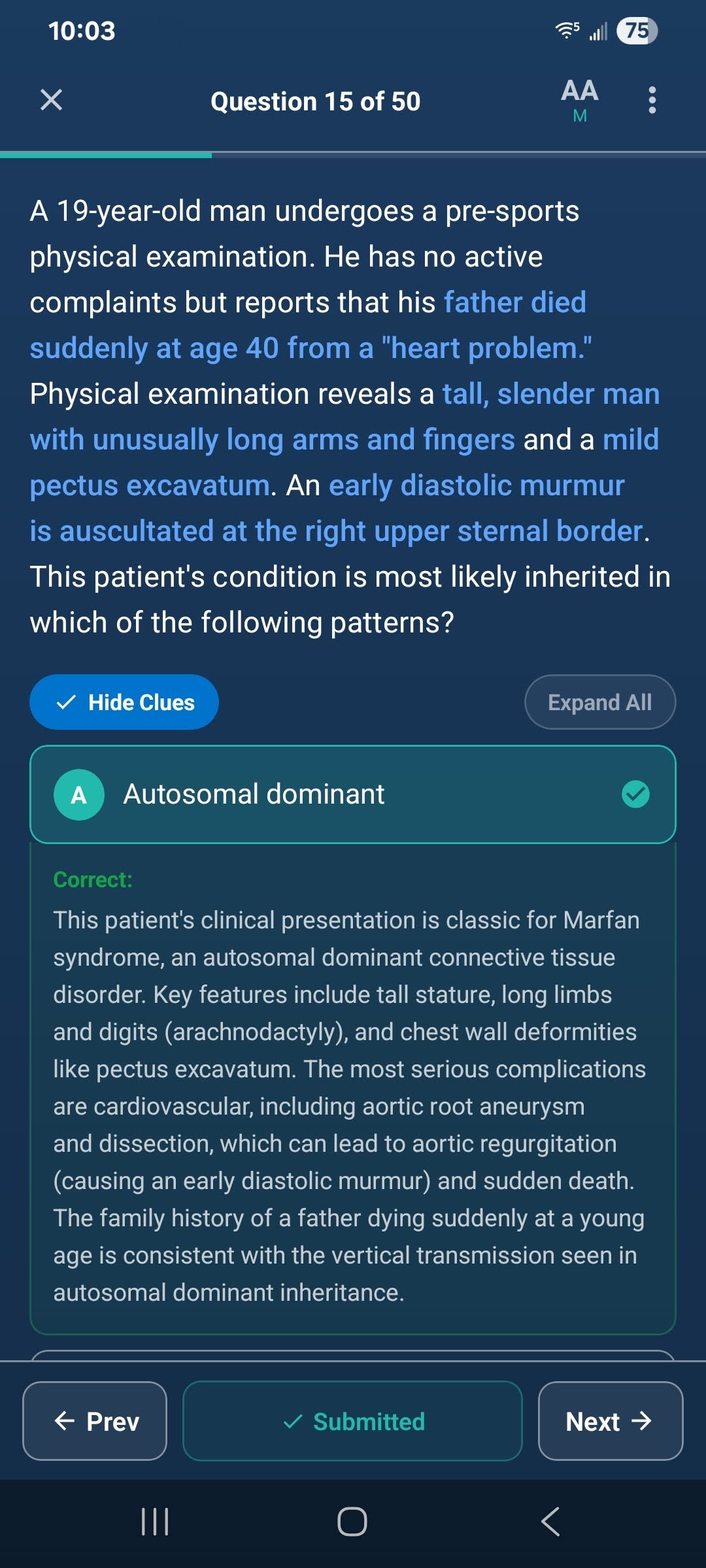
A practice question on the ExamFlip mobile app.
Get the app
- Download on the App Store
- Get it on Google Play
- Not sure which store to use? Open the install link and it will redirect to the right store automatically.
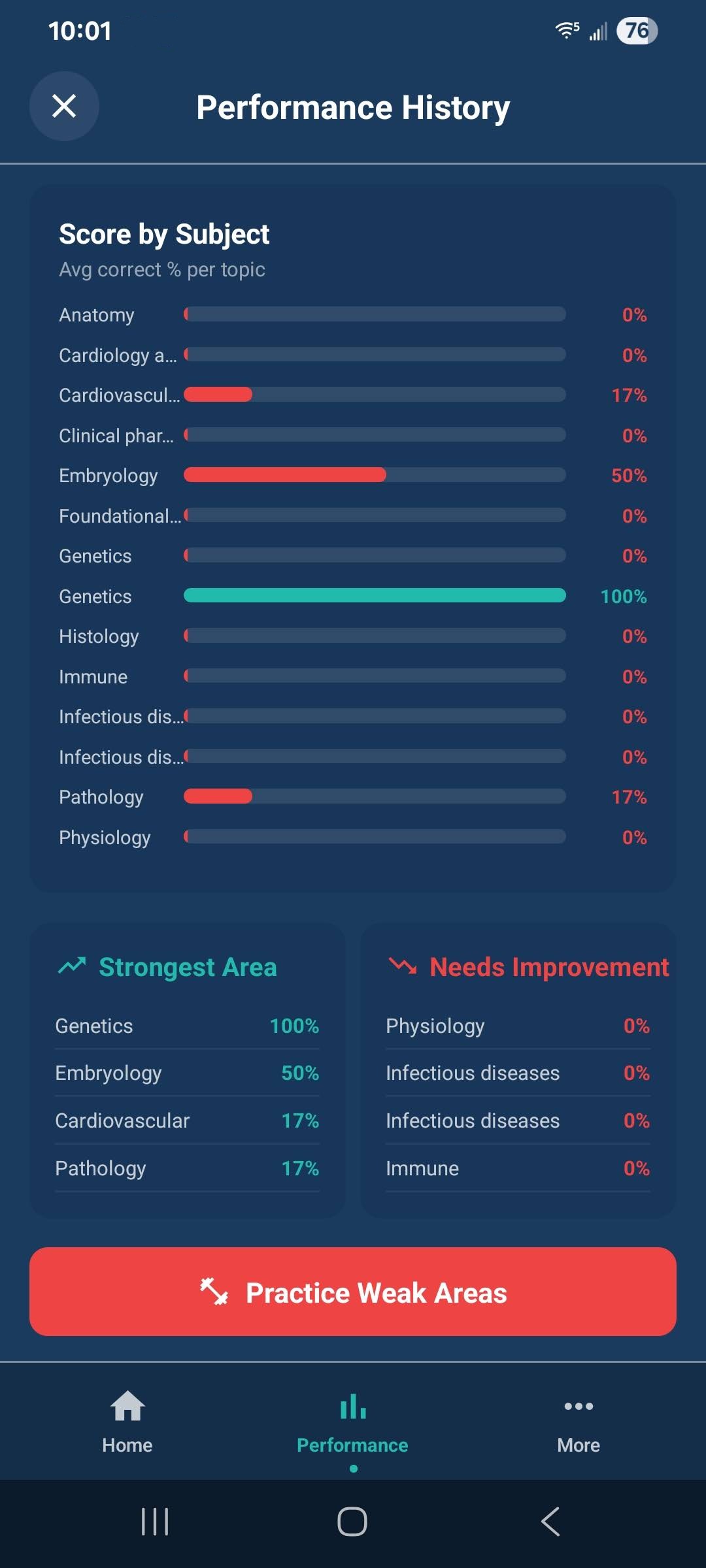
Performance summary on the mobile app.
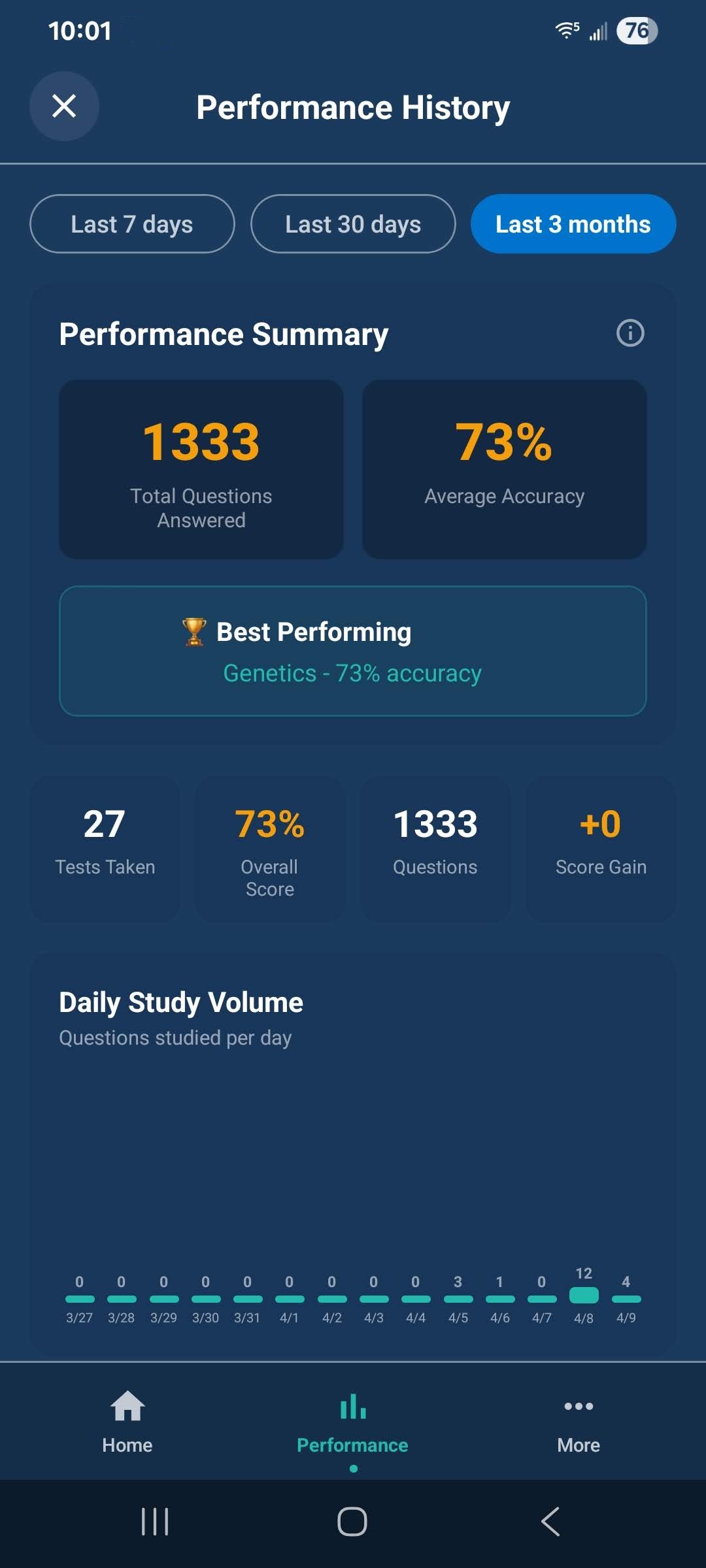
Performance detail on the mobile app.
What's available on mobile
- Flashcards and Answer Insights are both available on the mobile apps.
- Simulated exams are web-only and are not available in the mobile apps.